Godot 4 Animation Player Tutorial
Gwizz · 3:38
A tour of the panel itself. Watch someone make a new animation, key a property and set the length and loop, which is the part of this lesson that is a mouse moving rather than words.
Watch on YouTubeFour animations in one node. Build an AnimationPlayer from nothing, learn what every control in the panel is for, and see the exact numbers that turn one picture into idle, walk, run and jump.
Loading the game engine. This takes a moment the first time.
Simple Animation played two animations without explaining the node that played them. This lesson opens the AnimationPlayer up. The hero on the left has four animations in one node (idle, walk, run and jump), and the strip on the right is a second AnimationPlayer running all four side by side so you can see the frames they are made of.
Nothing here is a new kind of picture. Every one of those animations is the same trick: change the Sprite2D's "frame" number, over and over, fast.
Notice how little this file knows. It never says what idle looks like, how many frames walk has, or how fast run goes. All of that is in the scene, saved on the AnimationPlayer. This script only ever picks a name.
That split is the point of the whole lesson. An artist can retime every animation in the player scene without opening this file, and you can rewrite every rule below without touching a single keyframe.
It is a node that changes OTHER nodes' properties over time. That is the whole idea, and it is bigger than it sounds. It is not "the sprite node" or "the animation node", and it does not draw anything at all. It reaches into a property that already exists somewhere in the scene and rewrites it as the clock runs.
So the AnimationPlayer can animate anything you can see in the Inspector: a sprite's frame, a node's position, a colour, a scale, whether something is visible. If you can set it by hand, an AnimationPlayer can set it for you, sixty times a second.
That is why it lives in the SCENE and not in this script. An animation is data, a list of times and values, rather than code. Our code only ever says which one to play.
AnimationPlayer is the node. It holds a whole library of animations and plays one of them at a time.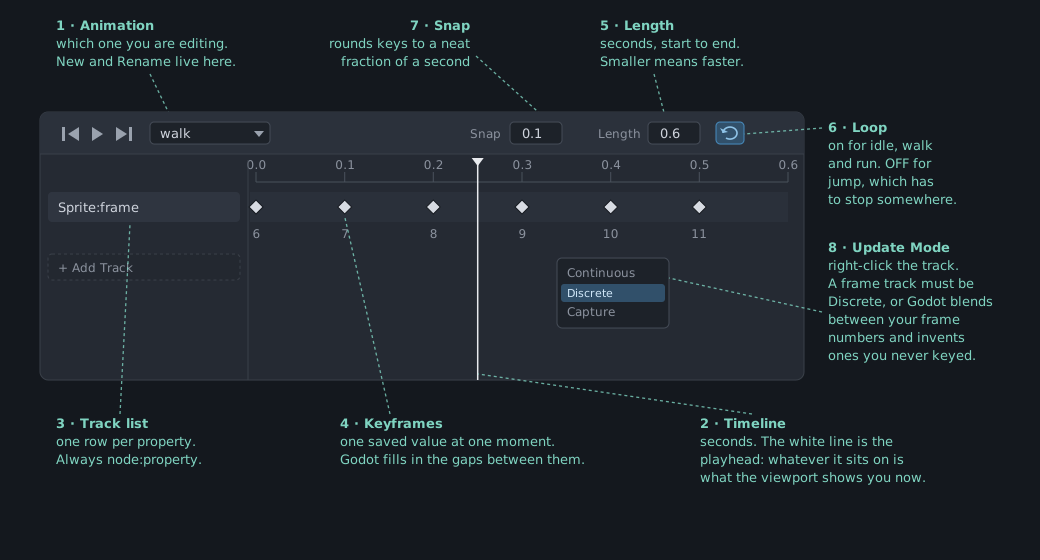
AnimationPlayer panel, with every control named.Read those four in order and the panel above stops looking like a mixing desk: a player holds animations, an animation holds tracks, and a track holds keyframes.
AnimationPlayer as a CHILD of it. Keeping it inside the player scene is what lets you drop that player into any level and have its animations come along.By default a track is CONTINUOUS: Godot blends between your keyframes, so a value that goes from 0 to 5 passes through 2.5 on the way. That is perfect for a position sliding across the screen. It is nonsense for a frame number, because there is no drawing halfway between frame 2 and frame 3.
Right-click the track, choose Update Mode, and pick DISCRETE. Now the value snaps from one keyframe straight to the next and holds it until the following key. That is what flipbook animation is.
Every frame track in this lesson is Discrete. If your own sprite animation ever looks like it is playing frames you never keyed, this is why.
hero.png is a 288x192 sheet: 6 frames across, 4 rows down, 48 pixels each. Setting hframes to 6 and vframes to 4 on the Sprite2D slices it into 24 numbered frames, counting left to right and then down. So the ROW you want decides the numbers you key, and nothing else about the setup changes.
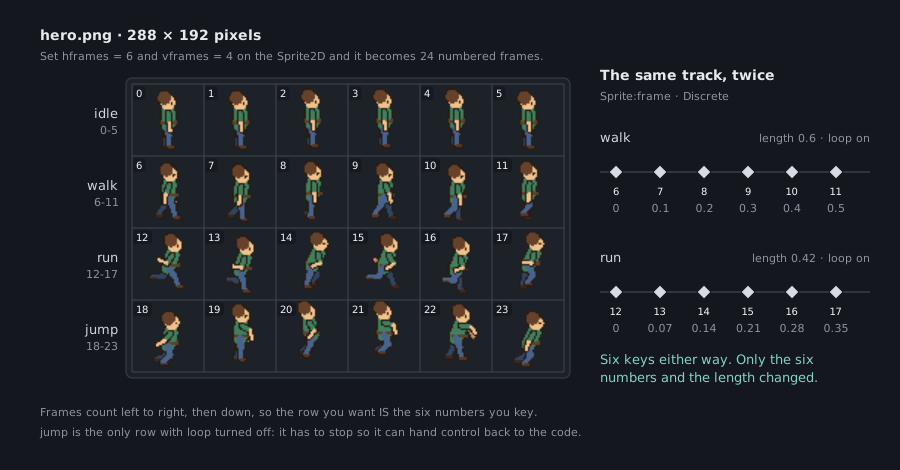
Look at what actually differs between walk and run: six keyframes either way, six numbers either way, one Discrete Sprite:frame track either way. Only the numbers in the keys and the number in the length box change. Run is not a harder animation than walk. It is the same animation pointed at a different row of the picture and given less time to finish.
Jump is the odd one out, and deliberately. Leave Loop on and the hero pogos forever, because the animation has nowhere to stop. Turn it off and the animation runs once, holds its last frame, and fires the animation_finished signal, which is how this script knows it is allowed to go back to standing around. That rule is written further down this file.
Nothing loads from YouTube until you press play.
Gwizz · 3:38
A tour of the panel itself. Watch someone make a new animation, key a property and set the length and loop, which is the part of this lesson that is a mouse moving rather than words.
Watch on YouTubeMrWonderHow · 3:24
The frame track specifically, which is the exact kind of track our four animations are built from, in a recent version of the editor.
Watch on YouTubeCoding Quests · 4:36
AnimationPlayer next to AnimatedSprite2D. Worth four minutes for the answer to the question this lesson will leave you with: which one should I use, and why?
Watch on YouTubeThese are other people's tutorials, not ours. They are here because some of this lesson is a mouse moving around a panel, and that is easier to watch than to read.
None of the earlier lessons use these. Each one shows the line where it appears here.
The signal an AnimationPlayer sends when an animation ends, with its name.
anim.animation_finished.connect(_on_animation_finished)Short for "else if": another condition to try when the if above it was false.
elif running:■ UI node · ■ 2D node · % unique name · .tscn instanced scene
extends CharacterBody2D

## Walking speed. "@export" puts these at the top of the Inspector so you can
## retune them without editing this file.
@export var walk_speed: float = 130.0
## Running speed, used while the run key is held.
@export var run_speed: float = 260.0

# "%AnimationPlayer" means "the node named AnimationPlayer in this scene."
@onready var anim: AnimationPlayer = %AnimationPlayer
@onready var sprite: Sprite2D = %Sprite

# True from the moment we start the jump until the jump animation finishes.
# While it is true, nothing else is allowed to change the animation.
var jumping: bool = false


func _ready() -> void:
	# "animation_finished" is a signal the AnimationPlayer sends when a
	# NON-looping animation reaches its end. Jump is the only one of our four
	# with Loop turned off, so it is the only one that will ever arrive here.
	anim.animation_finished.connect(_on_animation_finished)


func _physics_process(_delta: float) -> void:
	var direction: Vector2 = Input.get_vector(
		"move_left", "move_right", "move_up", "move_down"
	)
	var running: bool = Input.is_action_pressed("run")

	velocity = direction * (run_speed if running else walk_speed)
	move_and_slide()

	# The sheet only draws the hero facing right, so walking left mirrors it.
	# Standing still keeps whichever way we faced last.
	if direction.x != 0.0:
		sprite.flip_h = direction.x < 0.0

	# The guard. A jump owns the animation until it has played itself out, so
	# everything below is skipped while one is running. Without this line,
	# walking during a jump would cut the jump off on its second frame.
	if jumping:
		return

	if Input.is_action_just_pressed("jump"):
		jumping = true
		play("jump")
		return

	# Three situations, three names. This is the whole "state machine": pick
	# the situation, play its animation.
	if direction.length() == 0.0:
		play("idle")
	elif running:
		play("run")
	else:
		play("walk")


## Start an animation, unless it is already the one playing.
##
## This check is not a tidiness thing, it is the difference between working and
## broken. "_physics_process()" runs about 60 times a second, so calling
## "anim.play("walk")" from it directly would restart walk 60 times a second
## and the hero would sit frozen on walk's first frame forever.
##
## Comparing against "current_animation" is enough on its own here. When a
## looping animation is going, that property holds its name; when the
## non-looping jump ends, Godot clears it back to an empty string.
## The parameter is "animation_name" rather than "name" because every Node
## already HAS a "name", and Godot warns about the shadowing.
func play(animation_name: String) -> void:
	if anim.current_animation != animation_name:
		anim.play(animation_name)


## Runs when a non-looping animation ends. Godot hands us its name.
func _on_animation_finished(finished: StringName) -> void:
	if finished == "jump":
		# Release the guard. The next "_physics_process()" will look at the
		# keys again and go back to idle, walk or run on its own.
		jumping = false